How to Connect GitHub to Claude: Skills, MCP and Saving Tokens for Marketers
Part 4 of my series on running marketing work from a GitHub repo. How I connect one repo to claude.ai Projects and Claude Code, review what Claude changes, use skills and MCP connectors safely, and keep my token usage under control.

This is Part 4 of 4 in my series on running marketing work from a GitHub repo with Claude. If you're starting here, the earlier parts are Git and GitHub from zero, context engineering for marketers and every way to use Claude. If a word in this post trips you up, keep my plain-words AI glossary open in another tab.
This part ties everything together. You have a repo. You have a CLAUDE.md, some skills and a tidy folder structure. Now you need Claude to work inside it, and you need to know what it did.
Learning Git took me a while. Pull requests confused me for longer than I'd like to admit. These days Claude Code does the Git work and I review what it does instead of creating pull requests by hand. My job moved from typing to editing, and that shift is what this post is about.
My setup: one repo, several Claude surfaces
I keep one GitHub repo as the "one brain" for my marketing work. Brand voice, positioning, past campaigns, skills and the content calendar context all live there. Several Claude surfaces read from it:
- claude.ai Projects, synced to the GitHub repo, for thinking, drafting and quick questions. I use Cowork from there for multi-step jobs.
- Claude Code, working directly in the repo on my computer, for anything that creates or changes files.
The point of the repo is that every surface reads the same source of truth. When I update a positioning doc, the next Project chat and the next Claude Code session both see it.
Connecting GitHub to Claude, step by step
There are three ways to do this, and they suit different jobs.
Option 1: add your repo to a claude.ai Project
This is the gentlest starting point. Claude reads your files, and it can't change anything in the repo from here.
Following Anthropic's GitHub integration guide:
- Open your Project on claude.ai.
- In the project knowledge section, click the "+" button and choose "GitHub".
- Search your repositories or paste the repo URL.
- Use the file browser to pick the files and folders you want Claude to know about.
Pick carefully. Your brand guide, positioning, skills and a handful of strong examples are worth more than the whole repo, and everything you add has to fit in Claude's context window.
When you change files on GitHub, the Project doesn't update by itself. Use the "Sync" icon to pull the latest version. Sync only brings in the files on that branch. It doesn't retrieve commit history or pull requests.
If Claude can't see a private repo after you paste a valid URL, you'll get a link to the Claude GitHub App, where you can grant access to all your repos or specific ones.
You can also add GitHub files to a one-off chat with the "+" button in the chat box and "Add from GitHub".
Option 2: Claude Code in a repo on your computer
This is where Claude does the work for you. You clone the repo to your computer (Part 1 covers this), open a terminal in that folder and type claude.
Claude Code works in any folder, including folders of markdown files with no code in them, which is what most marketing repos are.
From there you ask in plain words:
- "Create a new branch for the November newsletter."
- "Commit these changes with a clear message."
- "Create a PR for my changes."
For pull requests, Claude Code uses the gh command-line tool under the hood. Install it once and log in with gh auth login, and Claude can open pull requests on GitHub for you. You can also ask it to summarise your changes before it opens the PR, which is a good habit for a non-developer.
Option 3: Claude Code on the web
If you'd rather not use a terminal, Claude Code on the web runs the same agent in the cloud from claude.ai/code. You connect GitHub by authorising the Claude GitHub App, pick a repo, and give it a task. It clones the repo, does the work and pushes a branch. You can then create a pull request from the session.
It's available on Pro, Max, Ultra and Team plans, and on Enterprise with the right seats. It counts toward the same usage limits as the rest of your Claude use, and the session keeps going after you close your laptop.
How to review what Claude does
Once Claude can commit and open pull requests, you become the editor, not the typist. That only works if you edit.
Here's how I review:
- Read the summary. At the end of a task, ask: "Summarise what you changed, file by file, in plain words." If something in the list surprises you, ask why.
- Look at the diff. A diff shows what was added and removed. In Claude Code on the web, the Changes card shows lines added and removed, and you can open the full diff and comment on specific lines to send back to Claude.
- Open the pull request on GitHub. The "Files changed" tab shows every edit in green and red. Read it like a proofreader.
- Ask it to flag risks. Anthropic suggests you review Claude's generated PR before submitting and ask Claude to highlight potential risks. I ask: "What in this PR could go wrong or need my judgement?"
- Read every permission prompt. When Claude Code asks to run a command or edit a file, read what it wants to do before you approve. If you don't understand a command, ask what it does first.
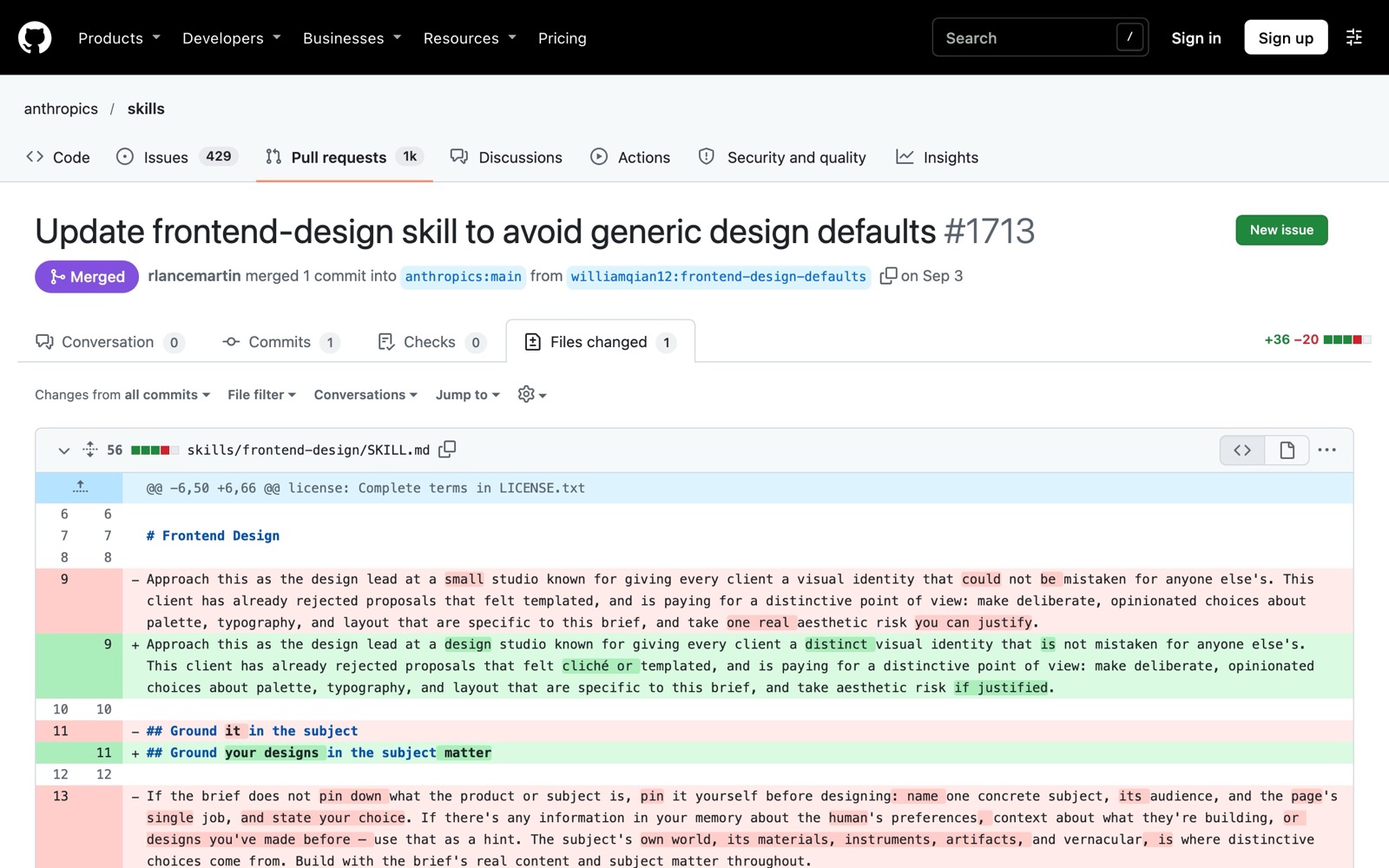
I audit what Claude writes into the repo itself, too. Once, Claude invented a CMO called "Bianca" inside my repo. There is no Bianca. If I hadn't been reading the changes, a made-up person would have become part of the "one brain" every future session reads from.
For bigger jobs, use plan mode. Press Shift+Tab until the status bar shows plan mode, and Claude reads and proposes a plan without editing anything until you approve it.
What a skill is, in plain words
A skill is a folder with a recipe in it. The recipe is a file called SKILL.md that tells Claude how to do one specific job, like writing a LinkedIn carousel or formatting a case study. The folder can also hold examples, templates or reference files.
The clever part is that skills load only when needed. Claude always sees each skill's short description, but the full SKILL.md loads only when it's used. So you can keep a lot of skills around without filling Claude's memory with all of them at once.
In Claude Code, you can call a skill by typing /skill-name, and Claude can also pick one up when your request matches its description. I tend to name it in the prompt: "Use the LinkedIn carousel skill to turn this blog post into slides."
Where skills live
In Claude Code, skills live in one of two main places:
| Location | Who can use it |
|---|---|
~/.claude/skills/<skill-name>/SKILL.md | You, in every project on this computer |
.claude/skills/<skill-name>/SKILL.md inside a repo | Anyone working in that repo |
On claude.ai, you manage skills under Customize, then Skills. Code execution needs to be on first, in Settings, then Capabilities. To add your own, zip the skill folder, click "+", choose "Create skill", then "Upload a skill".
The gotcha I hit
I installed a community "humanizer" skill on claude.ai in the browser. Then I went to use it in Claude Code in the terminal, and it wasn't there. Skills installed in one place didn't show up in the other.
Anthropic has since added a one-way sync: if you sign in to Claude Code with the same claude.ai account, your claude.ai skills sync to Claude Code from version 2.1.273, and you can see them with /skills. It doesn't work with API-key sign-in, and it only goes one way.
My fix still works best for me: keep skills as folders inside the GitHub repo. Claude Code finds them in .claude/skills, and I can add the same folders to my Project from GitHub. Every surface reaches them, and they're version-controlled like everything else.
Installing a skill
In Claude Code, many skills come as plugins from a marketplace. Anthropic's own skills install with two commands:
/plugin marketplace add anthropics/skills
/plugin install document-skills@anthropic-agent-skills
Or copy a skill's folder into ~/.claude/skills or your repo's .claude/skills.
On claude.ai, Anthropic's example skills are already available on paid plans. Toggle them on in Customize, then Skills. For anything else, upload the zip.
Read before you install
A skill is a set of instructions Claude follows, and it can include scripts. Claude Code's docs warn that a skill can grant itself broad tool access, and Anthropic's help centre says to only use skills from trusted sources and read the bundled files first, especially scripts and anything that connects to the internet.
Before installing, open the SKILL.md and read it. If it's long, paste it into a fresh chat and ask what it does and what it can access. I go into the checks in more detail in 20 ways marketers can stay safe while building with AI agents.
Skills worth starting with
Keep this list short. A few skills you use every week beat twenty you forget about.
Anthropic's document skills. The official skills repo includes docx, pptx, pdf and xlsx. These let Claude create and edit Word documents, slide decks, PDFs and spreadsheets, which covers a lot of marketing deliverables.
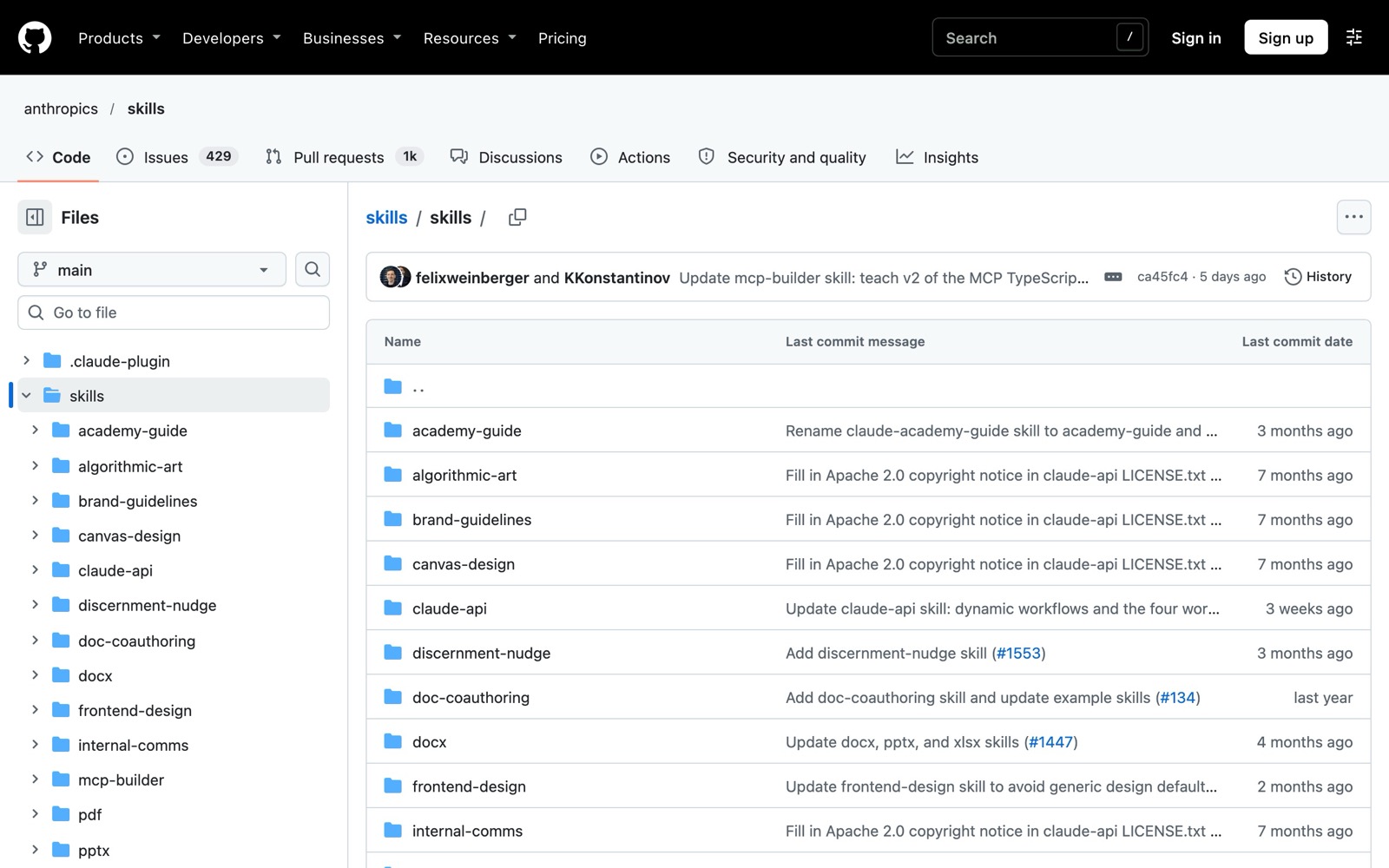
brand-guidelines and theme-factory. Both are in the same repo. The brand-guidelines skill applies Anthropic's own brand, so treat it as a template: copy it and swap in your colours, fonts and rules.
frontend-design. Useful if you build landing pages or simple web pages with Claude and want them to look less generic.
A humanizer skill. The one I use is the community humanizer skill by blader, based on Wikipedia's "Signs of AI writing" guide. It's not from Anthropic, so read it before you install it, like any community skill.
skill-creator. This one helps you make your own skills. Describe a job you do every week, like turning a podcast episode into show notes, and it helps you write the SKILL.md. Your own skills, built on your own examples, end up being the most useful ones.
What MCP is, in plain words
MCP (Model Context Protocol) is a plug that lets Claude talk to another app. Anthropic describes it as an open standard for connecting AI to tools. Asana, Notion and Gmail all have connectors built on it.
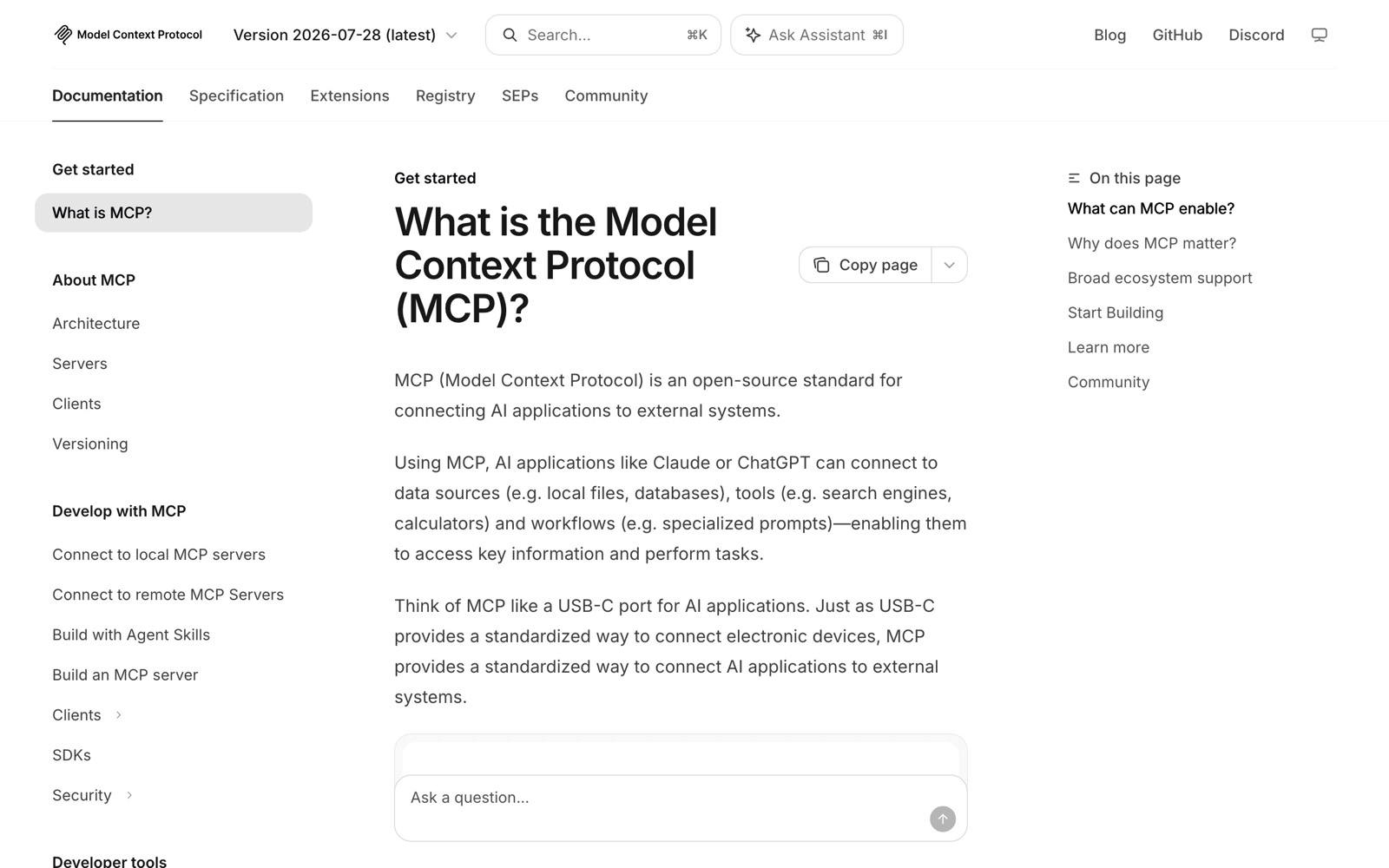
On claude.ai you add these from the connectors directory. In Claude Code, you add them with claude mcp add and check them with /mcp.
I use the Asana connector for my social calendar. Claude reads the board, drafts the week's posts using the context in my repo, and once I approve the drafts, it updates and closes the tasks.
I was wary of connecting things to AI at first, and I gave Claude limited permissions on purpose. That's my advice for every connector:
- Start with the least access the task needs.
- Connect one tool at a time, and only when you have a specific job for it.
- Disconnect anything you're not using. Anthropic notes that tools and connectors are token-intensive, so this saves usage too.
- Only connect servers you trust. Claude Code's docs warn that servers that fetch outside content can expose you to prompt injection.
How not to burn through your tokens
A token is a small chunk of text, roughly part of a word. Everything Claude reads and writes is counted in tokens: your message, the files it opens, the whole conversation so far, and its reply.
On a paid plan you have usage limits: a session limit that resets every five hours, and weekly limits. Separately, each conversation has a length limit, which is how much Claude can hold in one chat. Long chats, bigger models, connectors and agents that work for a long time all use more.
The key thing to understand is that Claude sends your full conversation with every request. A one-line question at the end of a long chat still costs the whole chat. Most token-saving habits follow from that.
| Habit | Why it saves tokens |
|---|---|
| Start a fresh chat for each task | Old context gets re-read with every message. A new chat starts from zero. |
Use /clear in Claude Code between unrelated tasks | It starts a fresh session and costs nothing. |
Use /compact when you want to keep going | It summarises the conversation so far. It's a large request itself, so use /clear when you don't need the history. |
| Keep CLAUDE.md short | It loads at the start of every session. Anthropic suggests under 200 lines. |
| Move detailed instructions into skills | Skills load only when used, so they don't cost tokens on unrelated work. |
| Point Claude at specific files and skills | "Read everything" makes Claude open every file. "Use @brand/voice.md and the newsletter skill" doesn't. |
| Don't paste huge documents | Add the file to the repo or Project and point to it, or paste only the section you need. |
| Pick the right model for the job | Anthropic says Sonnet handles most tasks and costs less than Opus. Haiku is the smaller, faster option for simple jobs. Switch with /model. |
| Plan first, then build | Plan mode catches a wrong direction before Claude spends tokens on rework. |
| Disconnect connectors you're not using | Tools and connectors add to every request that uses them. |
| Check your usage | Run /usage in Claude Code, or go to Settings, then Usage on claude.ai. |
On paid plans, /usage in Claude Code also shows what's eating your allowance, such as specific skills, connectors or a long CLAUDE.md, with suggestions for each.
Two things are heavier than they look. Claude Design runs on its own weekly allowance, so treat each round of design changes as part of a budget. And long agent runs, where Claude works through many steps and files by itself, keep re-reading their growing context. Give them a clear, narrow brief.
My weekly flow
Here's what a week looks like, using the pieces above:
- Monday, in Claude Code. I open a fresh session in my marketing repo. Claude reads my social calendar board in Asana through the connector and drafts the week's posts using the brand and positioning files in the repo. I name the skill in the prompt: "Use the LinkedIn carousel skill for Wednesday's post."
- Review. I read the drafts and the summary of what changed. I check for anything made up, Bianca-style.
- Approve. Once I'm happy, Claude updates and closes the tasks in Asana. It commits the drafts and opens a pull request, and I read the diff before merging.
- Thinking and quick drafts, in a Project. For anything that's more conversation than file work, I use my claude.ai Project, synced to the same repo. Cowork handles the multi-step jobs.
- Housekeeping. When a file goes out of date, like an old positioning doc or last quarter's campaign brief, I swap it out for the current version so Claude isn't working from stale context.
New task, new chat. That one habit keeps the drafts focused and the usage down.
Wrapping up the series
That's the end of the four parts. Here's the whole path in one place:
- Git and GitHub for marketers: what a repo, a commit, a branch and a pull request are, from zero.
- Context engineering for marketers: how to structure a repo as an AI brain with CLAUDE.md, skills, memory, a wiki and a smart JSON index.
- Every way to use Claude: chat, Projects, Cowork, scheduled tasks, Claude Code on desktop and in the terminal, Claude Design, Claude in Chrome and speech to text.
- This post: connecting GitHub to Claude, reviewing its work, skills, MCP and saving tokens.
And the companions: the plain-words AI glossary, the AI agent safety checklist, and how this all fits into my agentic content marketing workflow.
If you take one thing from the series, make it this: put your marketing knowledge in one repo, connect Claude to it, and spend your time reading what Claude did. The typing is the easy part to hand over. The judgement stays with you.
Photos on Unsplash: cover by Albert Stoynov. Screenshots are my own, taken from GitHub and modelcontextprotocol.io in November 2026.