Every Way to Use Claude, Explained for Marketers
Claude is a family of tools, from the chat window to browser agents, design canvases and the terminal. Here's what each one is good for, how I use them as a marketer, and a beginner's walkthrough for Claude Code in the terminal.

This is Part 3 of a four-part series for marketers who want to work with AI agents properly. Part 1 covers Git and GitHub from zero. Part 2 shows how to structure a repo so it works as an AI brain. This post maps every way to use Claude. Part 4 connects GitHub to Claude, sets up skills and keeps your token use under control.
If a word in here trips you up (agent, terminal, token, MCP), I wrote a plain-words glossary of AI terms for marketers. Keep it open in another tab.
I'm a marketer, not an engineer. When I started, I was sceptical about Claude, and I was especially sceptical that the terminal version of Claude Code would be worth the effort. A black window with a blinking cursor didn't look like a marketing tool.
I was wrong. Claude Code in the terminal is now the one I rate best and find most efficient, especially paired with Claude Design. But I still use the other surfaces every week, because they're good at different jobs.
Claude is a family of tools
The thing that confused me most at the start was the naming. "Claude" is the model, and it shows up in lots of places that behave differently. Here's the map I wish I'd had.
| Surface | What it's good for | Where you find it |
|---|---|---|
| Chat | Quick tasks, rewrites, one-off questions, dropping in files | claude.ai, desktop and mobile apps |
| Projects | Repeat work that needs the same background files and instructions | The Projects section of claude.ai |
| Cowork | Multi-step jobs that end in a finished file or document | The Claude desktop app and claude.ai |
| Scheduled tasks | Work that runs on a timer or trigger, even with your laptop shut | claude.ai/code/routines, Cowork, or /schedule in Claude Code |
| Claude in Chrome | Browsing tasks: reading pages, clicking, filling in forms | A Chrome extension |
| Claude Design | Visual prototypes, slides and one-pagers | claude.ai/design |
| Claude Code desktop | Working on a project folder without the terminal | The Code tab in the Claude desktop app |
| Claude Code in the terminal | Repo work, prototypes, Git, skills, several sessions at once | Your Mac's Terminal app |
One plain definition before we go further. An agent is an AI that doesn't stop at one answer: it plans a series of steps, uses tools (your files, a browser, an app) to carry them out, and checks its own work along the way. Chat answers you. Agents get things done.
Chat on claude.ai
This is where most people start, and it's still where I go for small things. Rephrasing a sentence, drafting a social post, rewriting five subject lines so they're shorter. Anything I'd otherwise spend ten minutes fiddling with.
I like the web app for two reasons. I can drag and drop files straight into the conversation, and I can see designs and visual output on screen instead of reading a description of them.
Chat's weakness is memory of your world. Every new conversation starts cold, so you end up pasting the same brand guidelines and audience notes again and again. That's what Projects are for.
Projects
A Project is, in Anthropic's words, a self-contained workspace with its own chat history and knowledge base. You give it files and instructions once, and every chat inside it starts with that background. Projects are available on free accounts too, with a limit on how many you can have.
The part that changed things for me is the GitHub integration. You can add a repository as project knowledge, pick which files and folders to include, and press "Sync now" to pull in the latest changes. It syncs files on one branch; it doesn't pull in commit history or pull requests.
My Project is synced to the same GitHub repo I described in Part 2. That means when I ask it to draft a campaign document, it's working from my positioning notes, past campaigns and style rules rather than guessing.
Cowork
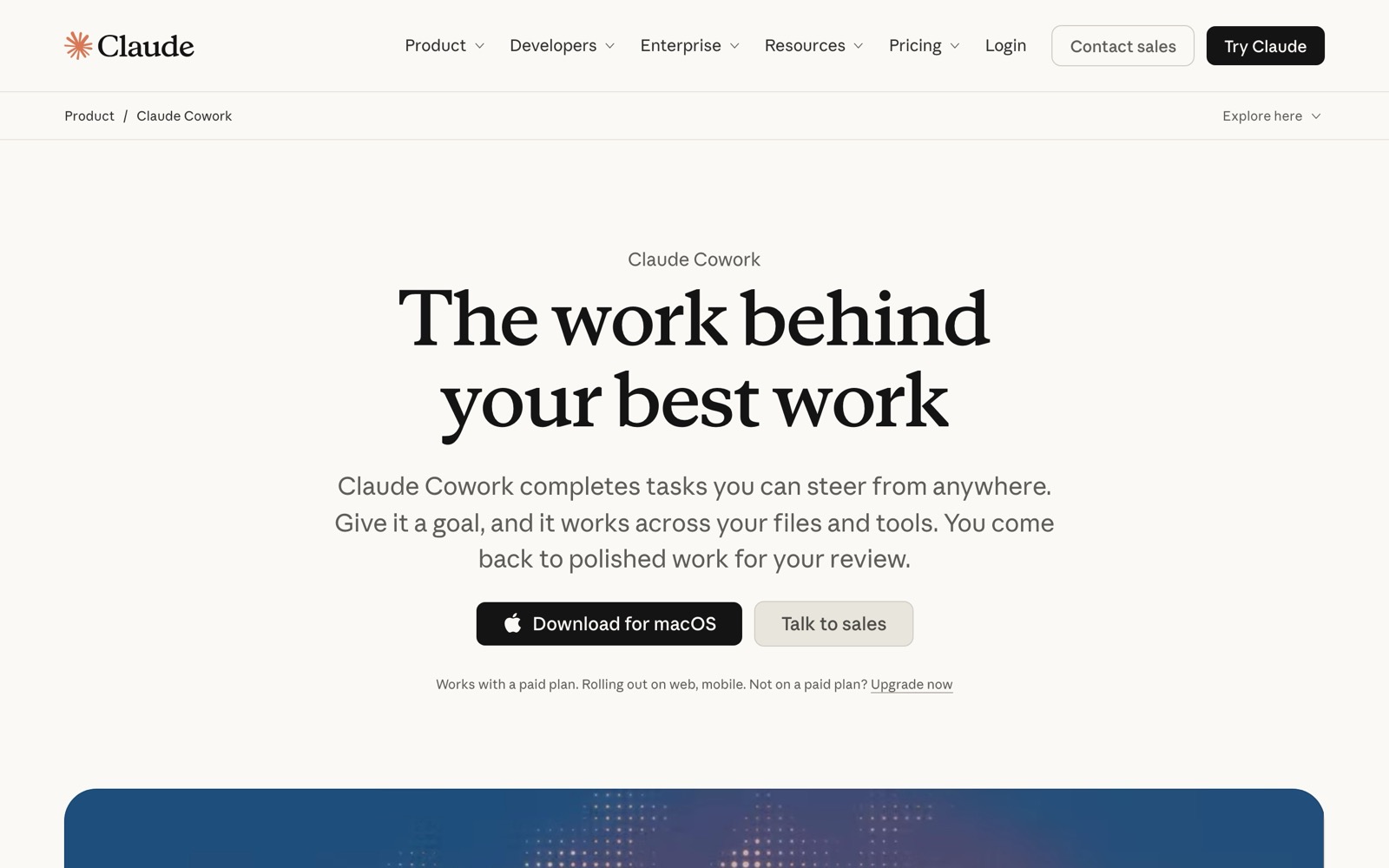
Cowork is where Claude stops answering and starts doing. Anthropic describes it as using the same agentic architecture that powers Claude Code, with no terminal required. You give it a job, it plans the steps, and it hands back finished work: the help article lists things like spreadsheets with working formulas, slide decks and formatted documents.
A few things worth knowing from the getting started guide:
- It's on paid plans only.
- The work runs on Anthropic's servers, and sessions keep going when your computer is asleep.
- On desktop, it can read and write your local files without you uploading and downloading them.
- It can split a big job into smaller pieces and work on them in parallel.
I use Projects and Cowork together for multi-step jobs. A typical one is drafting a campaign document from the repo: pull the audience research, check what we've said before, draft, then format it as something I can share.
Scheduled tasks (formerly routines)
You'll still see the word "routines" in older articles and in some menus. Anthropic now calls them scheduled tasks. A cloud scheduled task is a saved Claude Code setup (a prompt, one or more repositories and any connectors it needs) that runs automatically on Anthropic's servers, so it keeps working when your laptop is closed.
Each task can be triggered on a schedule, by an API call, or by a GitHub event such as a new pull request. You can set one up at claude.ai/code/routines or by typing /schedule inside Claude Code. Cowork has its own scheduled tasks too.
My favourite example is boring and useful. I write a blog post, mark it as a draft and push it to GitHub. A scheduled task wakes up at the publish date and time, flips the draft flag off and pushes the change. The site rebuilds and the post goes live while I'm doing something else.
Good candidates for scheduled tasks are jobs that are the same every time, need to happen at a set moment, and are easy to check afterwards. Publishing, weekly reports and tidy-ups all fit.
Claude in Chrome
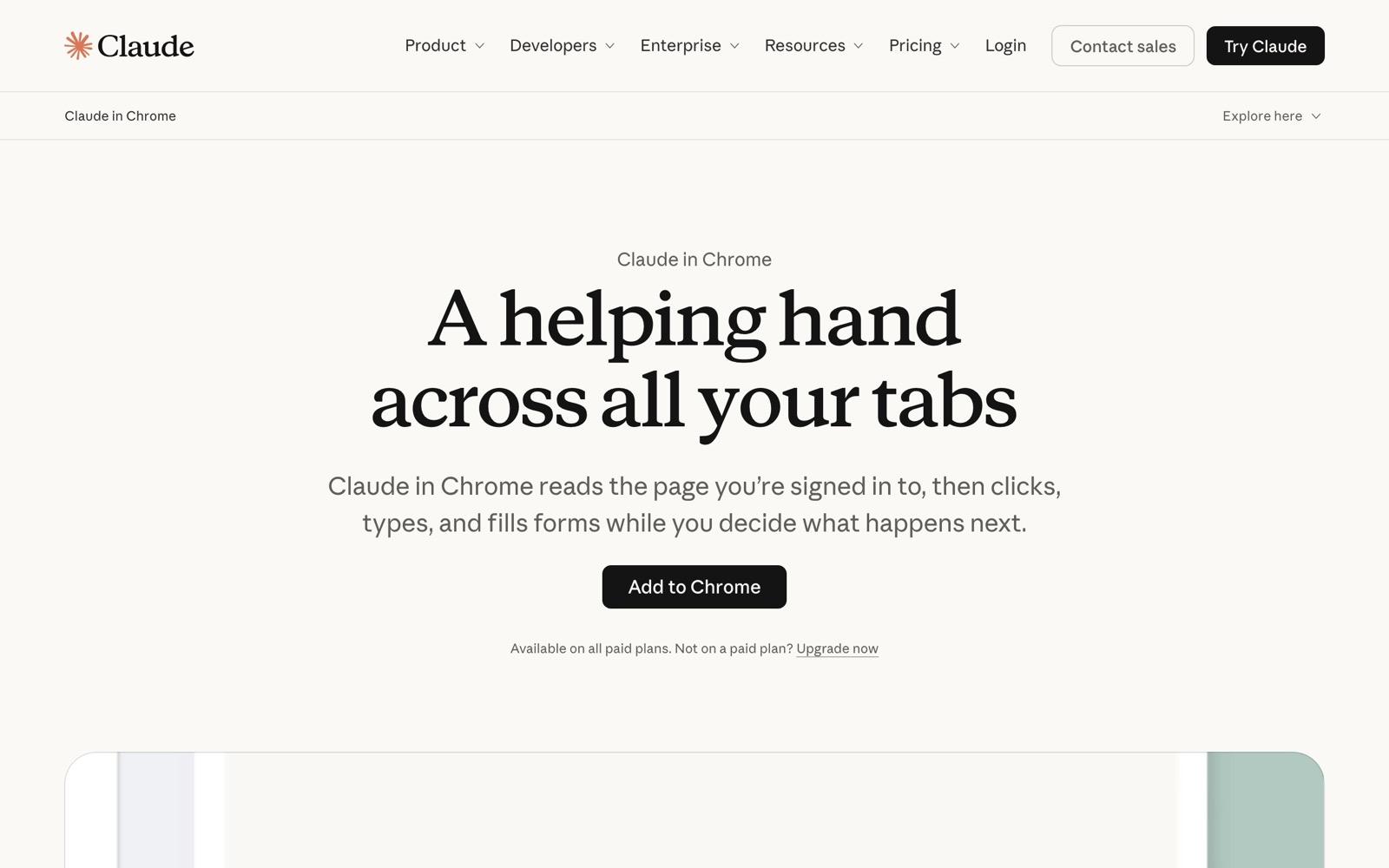
Claude in Chrome is a browser extension that can read pages, click, type, navigate, fill out forms and work across several tabs. It's on paid plans.
This is agent-style browsing. You describe the outcome and it moves through the websites for you. My last use was finding movie tickets, which is a good test: lots of clicking between listings, times and seats.
Anthropic's own help article says the extension has safety classifiers but is still risky, and points you to a safety guide before you start. I'd take that seriously. Web pages are untrusted content, and a browser agent that's also logged into your accounts is exactly the setup my safety post warns about.
Claude Design
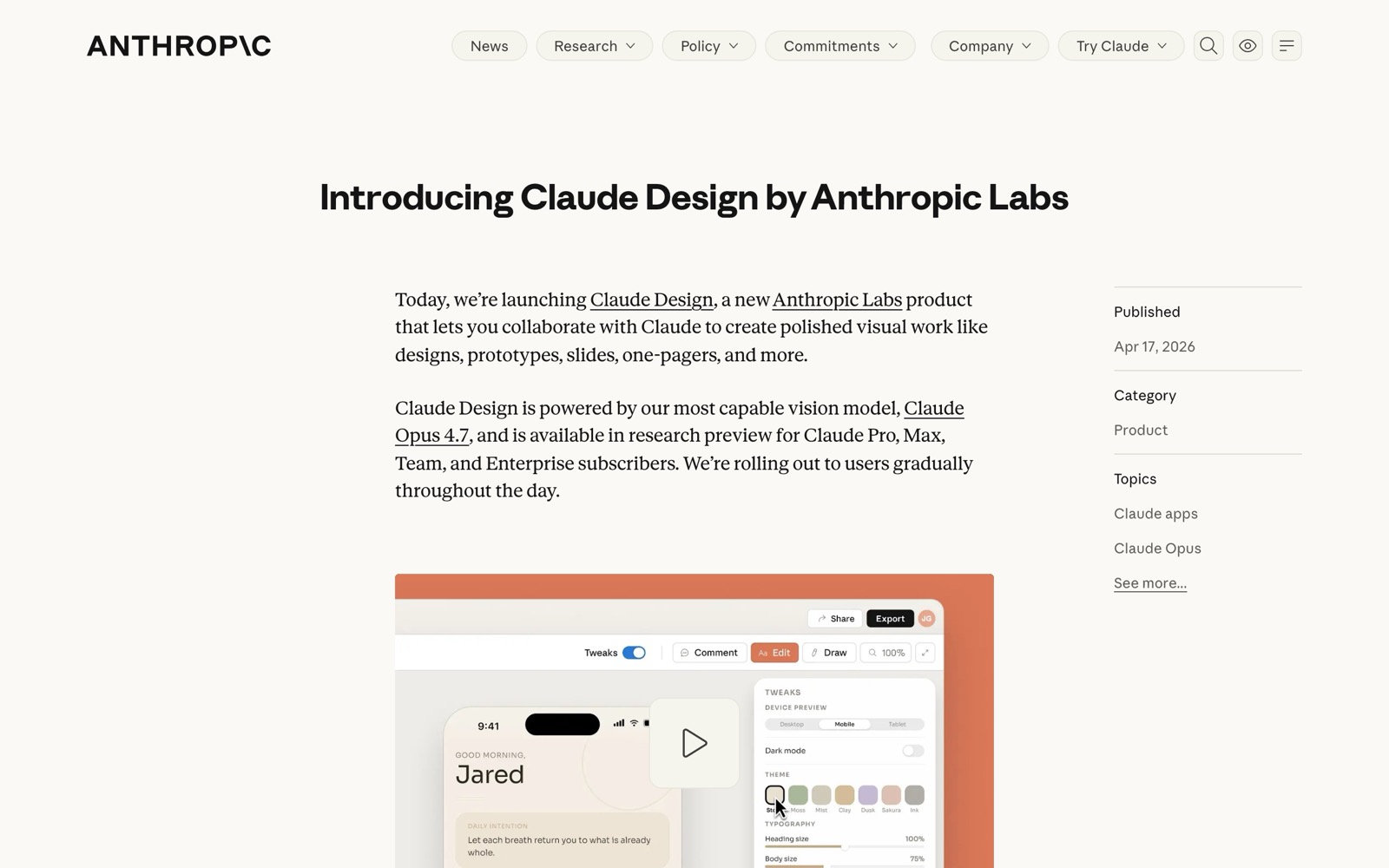
Claude Design is Anthropic Labs' tool for visual work. It lets you collaborate with Claude on designs, prototypes, slides and one-pagers. You describe what you need, Claude builds a first version, and you refine it through conversation, comments on the canvas or direct edits. It's available on Pro, Max, Team and Enterprise plans.
I use it for prototyping visuals: a landing page layout, a deck, a social graphic system. It's the fastest way I've found to get from "I can picture it" to something I can show someone.
It's token-heavy. Anthropic says it uses your subscription limits, with the option to pay for extra usage beyond them. Visual output costs more than text, so I use it for the parts that need to be seen and keep the thinking and drafting elsewhere. Part 4 goes deeper into not burning tokens.
Claude Code in the desktop app
If you want Claude Code's power without the terminal, the Claude desktop app has a Code tab. The desktop docs describe each conversation as a session with its own chat history and project folder. You can run several sessions in parallel from the sidebar, review changes file by file in a visual diff before creating a pull request, and have Claude open a preview of a site to check its own work.
This is a friendly middle step. If the terminal guide below makes you nervous, start here. The terminal guide itself points non-terminal people to the desktop app first.
Claude Code in the terminal
This is the one I was wrong about, and the one I'd now pick if I could only keep one.
Claude Code works directly on the files in a folder on your computer. Point it at your marketing repo and it reads what it needs as it goes. The quickstart puts it plainly: you don't have to add context by hand.
Here's what makes it the most efficient surface for me:
- It's fast. I type (or speak) a request and it edits files in place. There's no copying output out of a chat window and pasting it somewhere else.
- It works on the source of truth. My repo is my marketing brain, so Claude Code is always working from the latest version of it.
- It runs Git for me. The quickstart lists prompts like
commit my changes with a descriptive messageandcreate a new branch. I used to make pull requests by hand. Now Claude Code does the Git work and I review what it did. - It uses skills and plugins: packaged instructions for jobs you repeat. Part 4 covers these properly.
- I can run several sessions at once, each in its own terminal tab, so one can tidy the repo while another builds a prototype.
My regular jobs for it are repo housekeeping (renaming, reorganising, updating the index) and prototypes. I've used it to build an event website prototype and landing pages.
Getting started with the terminal
If you've never opened a terminal, this section is for you. It takes about ten minutes.
What the terminal is
The terminal is a text window where you type instructions to your computer instead of clicking. That's all. It looks intimidating because it's plain, but you'll only need a handful of commands, and Claude Code handles most of the rest once it's running.
Open it on a Mac
Anthropic's terminal guide gives the steps: press Cmd and Space to open Spotlight, type Terminal and press Enter. A window with a blinking cursor appears. That's your terminal.
Install Claude Code from the official docs only
Go to the official Claude Code quickstart by typing the address yourself, and copy the install command from there.
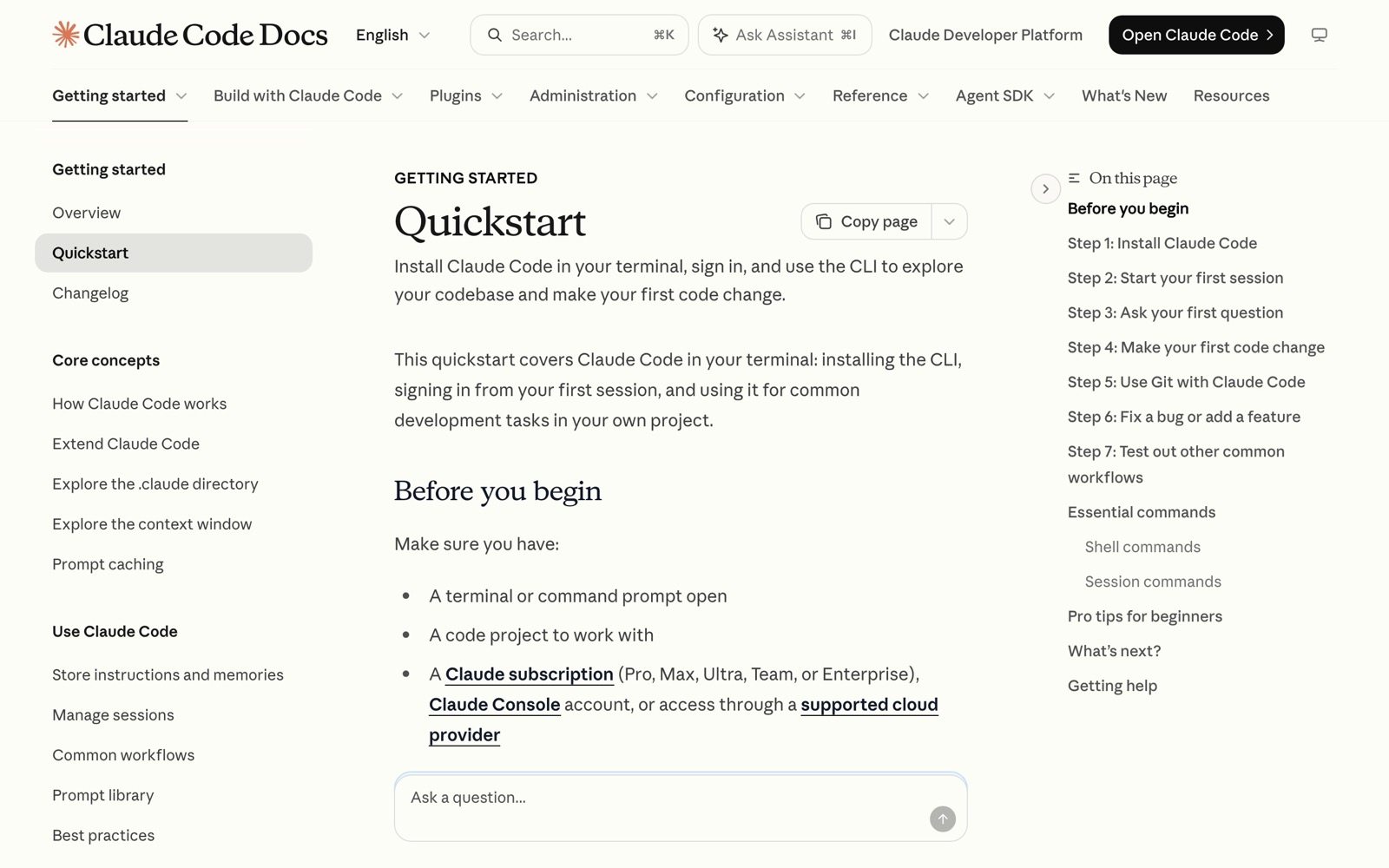
This matters. Earlier this year, attackers bought Google ads for "Claude Code install" that led to cloned documentation pages with a malicious command. I wrote about it in my AI agent safety guide. Never paste an install command from an ad, a social post, a DM or a random blog. That includes this one: go to the source.
The install shows no progress while it downloads, so leave the window alone until it finishes. Then open a new terminal window and run claude --version. If you see a version number, it worked. If you see "command not found", the terminal guide's troubleshooting section has the fix.
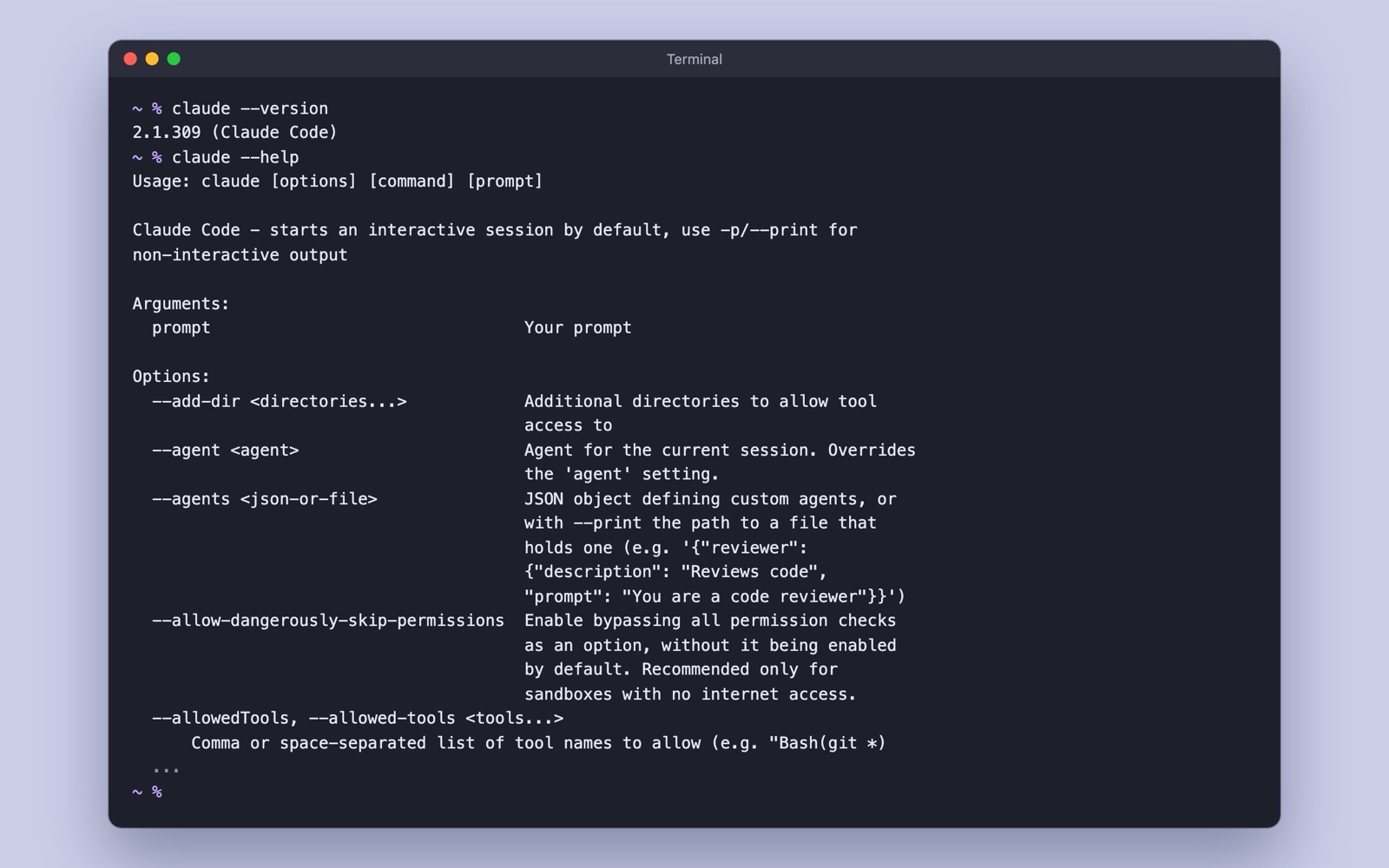
You'll need a paid Claude plan or a Console account; the quickstart lists the account types that work.
Go to your repo and start Claude
cd means "change directory", or "go into this folder". If your marketing repo from Part 1 lives in a folder called marketing-brain in your Documents, you'd type:
cd ~/Documents/marketing-brain
claude
A shortcut: type cd with a space, then drag the folder from Finder into the terminal window. It fills in the path for you.
The first time you run claude, it asks you to log in through your browser. After that, you're in.
First prompts to try
Start by asking questions before you ask for changes. These are adapted from the quickstart's suggestions:
what does this project do?
explain the folder structure
what files have I changed?
Then try something small and useful:
read my brand voice file and rewrite the homepage hero in that voice
summarise every campaign brief in /campaigns into one table
commit my changes with a descriptive message
Claude Code will show you what it wants to change and ask for permission. Read it before you say yes, especially early on.
Commands worth knowing
Commands start with a slash and go at the start of your message. These are from the official commands reference:
| Command | What it does |
|---|---|
/help | Shows help and the commands available to you |
/init | Creates a CLAUDE.md guide for your project (Part 2 explains why that file matters) |
/clear | Starts a fresh conversation with empty context |
/compact | Summarises the conversation so far to free up space |
/resume | Picks up a previous conversation |
/usage | Shows your plan usage limits and activity |
/rewind | Rolls the conversation or your files back to an earlier point |
/voice | Turns on voice dictation |
Two more things from the terminal guide: press Esc to stop Claude mid-task, and type exit to leave.
How Claude Design and Claude Code work together
This pairing is the reason I rate the terminal so highly. Design is where I get something visual and agreed. Code is where it becomes a working page in my repo.
There are three connections, all documented:
- From Design to Code. When a design is ready, Claude Design packages everything into a handoff bundle that you can pass to Claude Code with a single instruction.
- From Code to Design. Inside Claude Code, the
/designcommand drafts mockups, screen flows, landing pages or posters as artboards on one canvas and publishes them as a Claude Design file you can open and edit in the browser. - Shared context. Your repo can hold your design tokens (colours, fonts, spacing) in
CLAUDE.mdor a theme file, and the docs say Claude treats your design system as higher precedence than its own choices.
In practice, I sketch the visual in Design until it looks right, hand it to Claude Code, and let Code build it inside the repo with the right brand files to hand. Then Code commits it and I review.
Speaking versus typing

For most people, speaking to your AI tools beats typing, because speaking is faster than typing. You can get a whole brief out in the time it takes to type the first paragraph.
But if you like typing, that's fine. Typing gives you more structure. The small delay between thinking and typing makes you think a bit more about what you're asking for. Speaking is closer to spitballing: you get everything out, in whatever order it comes.
So I'd suggest a mix:
- Dictate the brain dump. Talk through the context, the audience, what's bugging you about the current version, what good looks like.
- Let Claude turn the ramble into structure. AI is good at this. Ask it to restate your request as a clear brief.
- Type or edit the final instruction. Read the structured version and tighten it before you let an agent act on it.
There are built-in options for each surface:
- macOS has Dictation built in. Turn it on in System Settings under Keyboard, and it works in any text box, including the terminal.
- The Claude apps have a voice mode for spoken conversations. It's built to work best on your phone.
- Claude Code in the terminal has voice dictation. Run
/voice, then hold the space bar while you speak. Your words appear in the prompt, so you can mix speaking and typing in the same message. It needs a claude.ai login, and the docs say transcription doesn't count towards your usage limits.
A few gotchas I hit
Skills didn't follow me between surfaces. I installed a "humanizer" skill on claude.ai and then couldn't use it in Claude Code in the terminal. Keeping my skills in a GitHub repo fixed that, because every surface can reach the repo. Part 4 has the details.
Since then, Claude Code has started syncing skills enabled on your claude.ai account into terminal sessions where you're signed in with that account. The sync only goes one way, so edits made in the terminal don't go back to claude.ai. I still keep the source of each skill in GitHub so there's one version I control.
Connectors are worth setting up carefully. I connect Claude to Asana through MCP so it can read my social calendar board, draft the week's posts with context from the repo, and close tasks once I approve them. I gave it only the access that job needs on purpose. Part 4 covers MCP in more detail.
Plans and pricing
Plans and limits change often, so I'm not going to quote numbers here. Check the official Claude pricing page. Some features need a paid plan: Cowork, Claude in Chrome, Claude Design, scheduled tasks and Claude Code with a subscription login are all listed on paid tiers in Anthropic's docs, while chat and Projects work on the free plan.
If you're on a company plan, some of these (Claude Design on Enterprise, for example) are switched off until an admin turns them on.
What's next
You now have the map. Chat for quick things, Projects for repeat work with the same background, Cowork for multi-step jobs, scheduled tasks for anything on a timer, Chrome for browsing, Design for visuals, and Claude Code for everything that touches your repo.
In Part 4, I'll show you how to connect GitHub to Claude properly, keep your skills in one place so they work everywhere, and stop burning tokens. If you want to see what this looks like once it's all running, my agentic content marketing workflow shows the whole engine.
Photos on Unsplash: cover and dictation photo by Vitaly Gariev. Screenshots are my own, taken from claude.com, anthropic.com and code.claude.com in November 2026.